Map Enhancer Settings Guide
Every user-configurable option in Map Enhancer 2.0 explained in detail. Learn how each toggle, slider, and color picker alters in-game telemetry, map performance, and operational overlays.
settings.json across updates.Native Settings Panel Overview
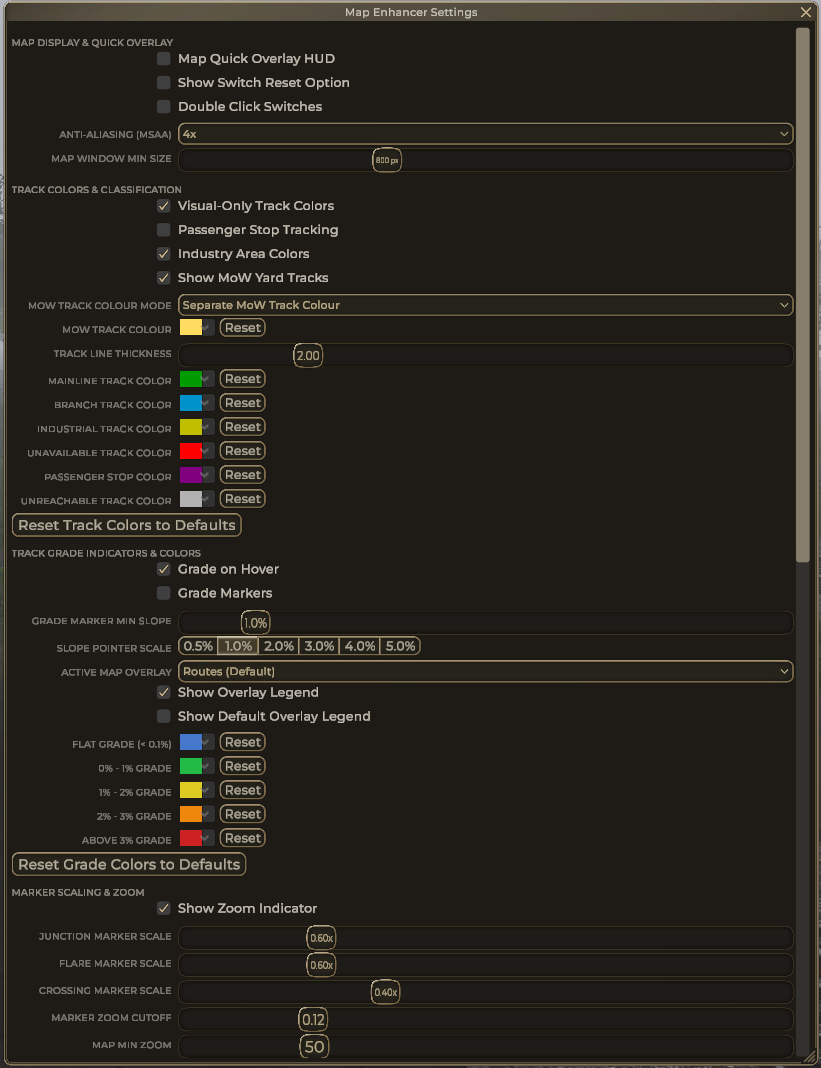
Covers Quick Overlay HUD, anti-aliasing (MSAA), functional track color classifications, and quantized grade slope badges.
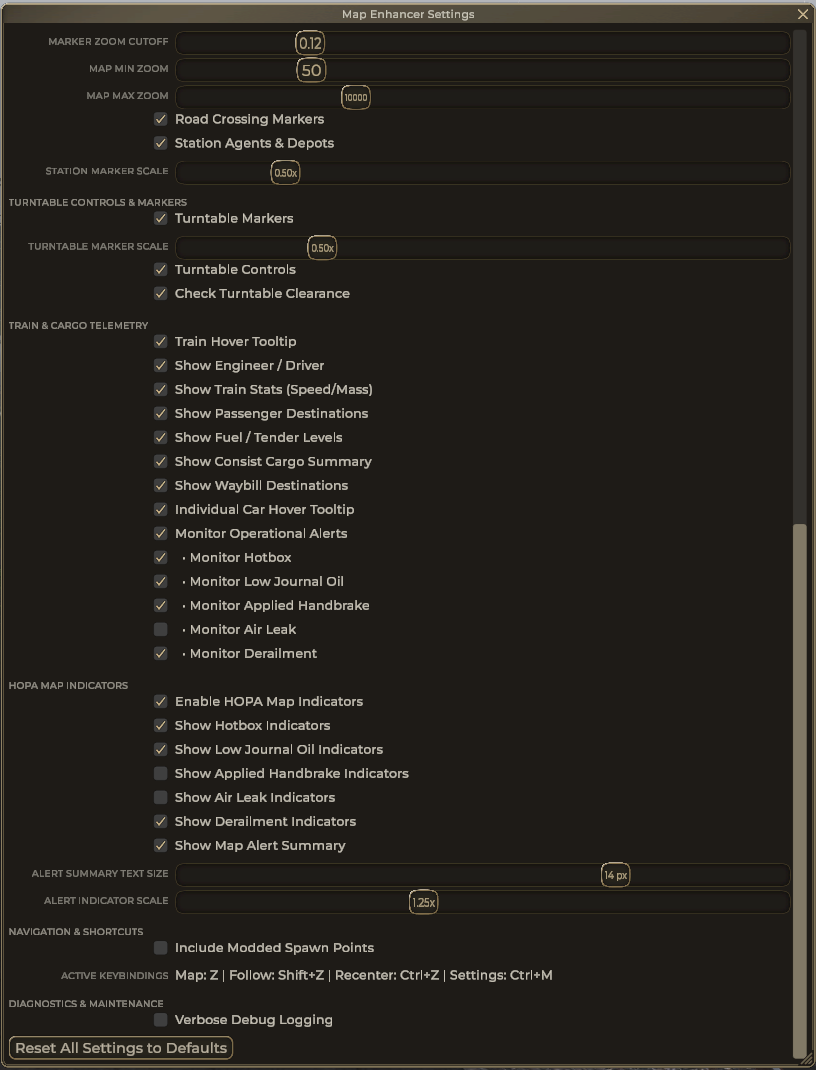
Covers crossing/station marker scaling, turntable clearance locks, consist telemetry, HOPA rolling stock alerts, and diagnostic logging.
1. Map Display & Quick Overlay
Controls the interactive map window chrome, switches, and rendering quality
Enables the compact quick-teleport and overlay switcher HUD mounted inside the upper-right corner of the Map Window. When disabled, the map window maintains a minimal, clutter-free appearance.
Displays the "All to Normal / All to Thrown" bulk switch reset option in the map controls. Keeping this off prevents accidental yard-wide derailments from accidental clicks.
Requires double-clicking switch indicators on the map to throw the switch points rather than a single click. Highly recommended for multiplayer hosts or when using high mouse sensitivity.
Controls multi-sample anti-aliasing on the map camera render target. The native analytical SDF quad shader already performs sub-pixel antialiasing with zero GPU cost; keeping MSAA at Disabled (1x) provides maximum frame rates.
Restricts the smallest size you can shrink the native floating map window to, guaranteeing that HUD labels and legends remain legible.
2. Track Colors & Classification
Configure functional route coloring, yard tracks, and line thickness
Colors track segments based on operational hierarchy (Mainline, Branch, Industrial, Unavailable). Does not alter physical track properties or train mechanics.
Highlights designated station platform spans with a distinctive purple passenger track color.
Tints tracks located inside industry zones according to the industry's assigned area color.
Highlights yard tracks specifically associated with Maintenance of Way equipment and facilities.
Choose between Use Industry Colour (matches the encompassing yard boundary) or Separate MoW Track Colour (renders dedicated golden yellow track lines). Default: Separate MoW Track Colour.
Mainline
Emerald Green
Branch Line
Sky Blue
Industrial Spur
Amber Yellow
Unavailable
Signal Red
Passenger Stop
Depot Purple
MoW Track
Warm Gold
3. Track Grade Indicators & Colors
Topographical slope calculation, hover tooltips, and grade badge thresholds
Moving your mouse over any track segment immediately calculates and displays the elevation gradient percentage (e.g., "Grade: +1.8% Climbing East").
Renders permanent slope chevron badges and percentage tags directly along track tangents.
Filters out flat territory. Grade markers will only appear on track spans whose slope exceeds this threshold. Quick preset buttons allow 1-click toggling between 0.5%, 1.0%, 2.0%, 3.0%, 4.0%, and 5.0%.
Controls the corner color swatch legend. Show Overlay Legend displays the legend for Track Grade, FRA Class, Condition, and Cleanliness. Show Default Overlay Legend enables it for the default Routes overlay as well.
4. Marker Scaling & Zoom Limits
Scale switch chevrons, flares, station huts, and custom zoom boundaries
Scales switch point direction chevrons.
Controls optical flare radius on lit switches.
Sizes highway crossbuck warning markers.
Sizes the gold-rimmed passenger station huts.
Fades markers when zoomed far out to avoid clutter.
Extends vanilla camera zoom limits down to 59m.
5. Turntable Controls & Clearance
Visual bridge orientation beams and fouling prevention locks
Renders the round turntable pit marker and synchronized bridge direction beam on the map.
Clicking the turntable marker on the map opens the native turntable control panel directly.
Prevents bridge rotation if a locomotive or railcar is hanging over the edge or fouling lead rails.
6. Train & Cargo Telemetry
Configure consist hover cards, engineer assignments, and fuel gauges
Main tooltip showing consist name, length, and heading.
Displays assigned player name or AI helper status.
Displays speed, car count, total tonnage, and length in feet.
Groups onboard passengers by final station destination.
Shows remaining coal, tender water, and diesel fuel.
Aggregated tally of all commodities loaded on the train.
Destinations and routing industries for individual cars.
Hovering individual cars shows reporting mark and load status.
7. HOPA Operational Alerts & Map Badges
Equipment defect monitoring: Hotbox, Oil, Handbrake, Air Leak, and Derailments
Map Enhancer divides rolling stock monitoring into two distinct systems: Alert Collection (gathers equipment state across the world for the alert summary window) and Map Indicators (renders visual letter badges directly next to cars on the map).
Hotbox
Journal bearing overheating
Low Oil
Journal oil below 25%
Handbrake
Handbrake wheel applied
Air Leak
Anglecock open or pipe breach
Derailment
Wheel off rail or tipped car
Renders a compact corner box displaying the total active alert counts (e.g., "Alerts: 1 Hotbox, 2 Handbrake"). Clicking the summary immediately centers the camera on the affected train.
8. Navigation, Shortcuts & Maintenance
Global keybindings, modded spawn points, and debug logging
- Toggle Map Window:Z
- Follow Selected Train:Shift + Z
- Recenter on Train:Ctrl + Z
- Open Settings Window:Ctrl + M
The settings panel provides dedicated reset controls:
Looking for installation or troubleshooting help?
Step-by-step instructions and common fix procedures.